
Features
c9watch gives you and your agents a real-time view of every Claude Code, Codex, Cursor Agent and Pi session running on your machine. The desktop app is for you. The CLI is for your agents. Both share the same detection engine, so you always look at the same data. Here’s what it can do.
Zero-integration setup
Section titled “Zero-integration setup”Works with any terminal or IDE. No plugins or extensions required. Start an agent from VS Code, Zed, iTerm2, Ghostty, tmux, Terminal.app, Antigravity, or any of the 13 supported JetBrains IDEs, and c9watch picks it up automatically.
Other tools make you launch sessions from inside their app. c9watch finds them by scanning running processes at the OS level. You change no workflow, and nothing locks you in.
Auto-discovery
Section titled “Auto-discovery”A background thread polls every 2 seconds using the sysinfo crate and scans for running agent processes. Each Claude Code process is matched to its session file in ~/.claude/projects/ via path encoding and timestamp correlation. Codex, Cursor Agent and Pi sessions are read from their own session files.
New sessions appear automatically in the dashboard within seconds of starting. Ended sessions are removed. No manual refresh needed.
Real-time status
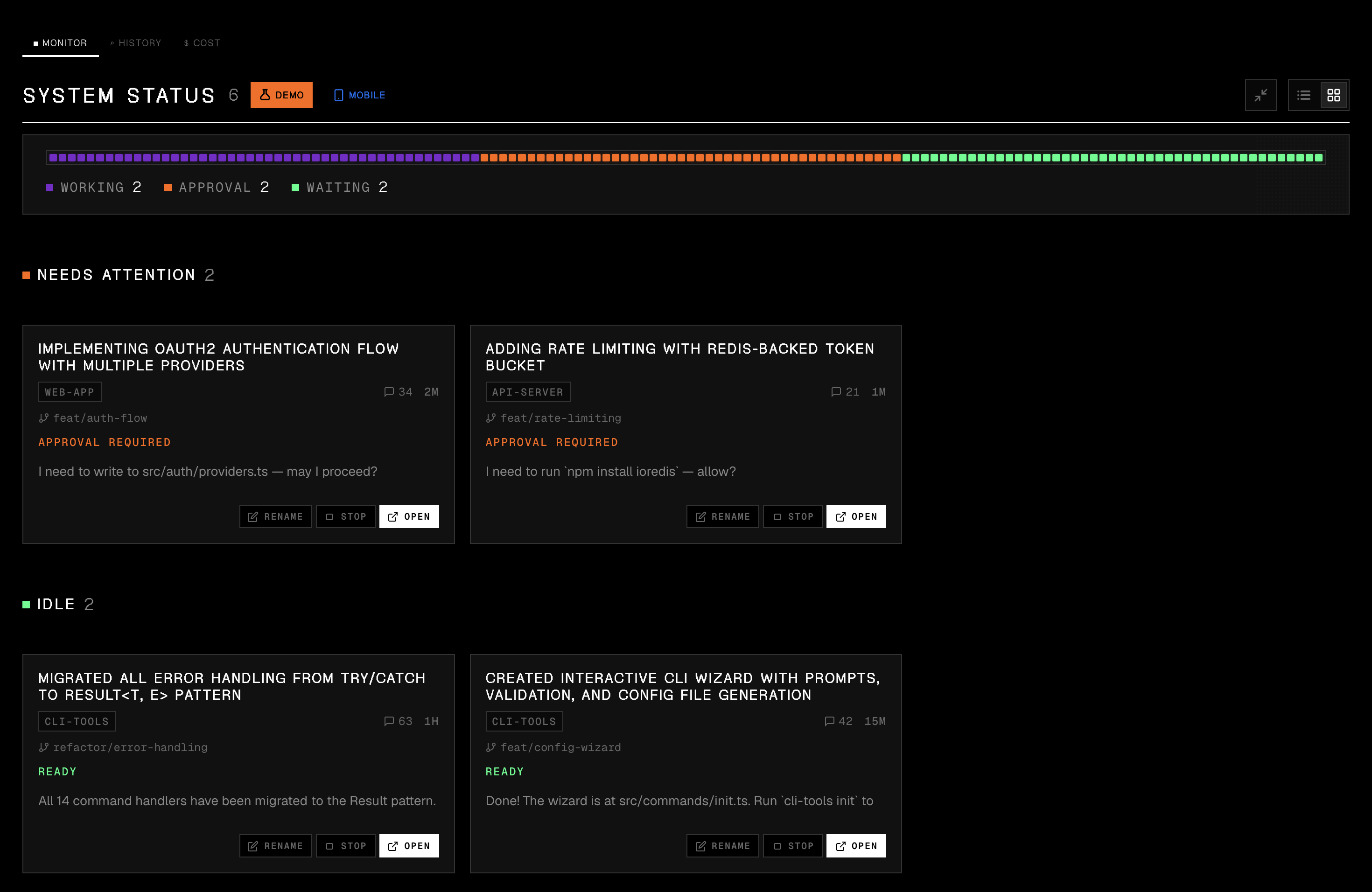
Section titled “Real-time status”Every session shows its current status at a glance:
- Working: the agent is generating a response or executing tools
- Needs Attention: a tool needs your approval, or the agent asked you a question
- Ready: the session is waiting for your next prompt
Codex shows Working and Ready only. It has no approval or question state.
Sessions are sorted by priority. Sessions that need attention surface to the top, so you never leave an agent stuck waiting. Each card also shows the model name, project path, git branch, current tool being executed, and elapsed time.
Conversation viewer
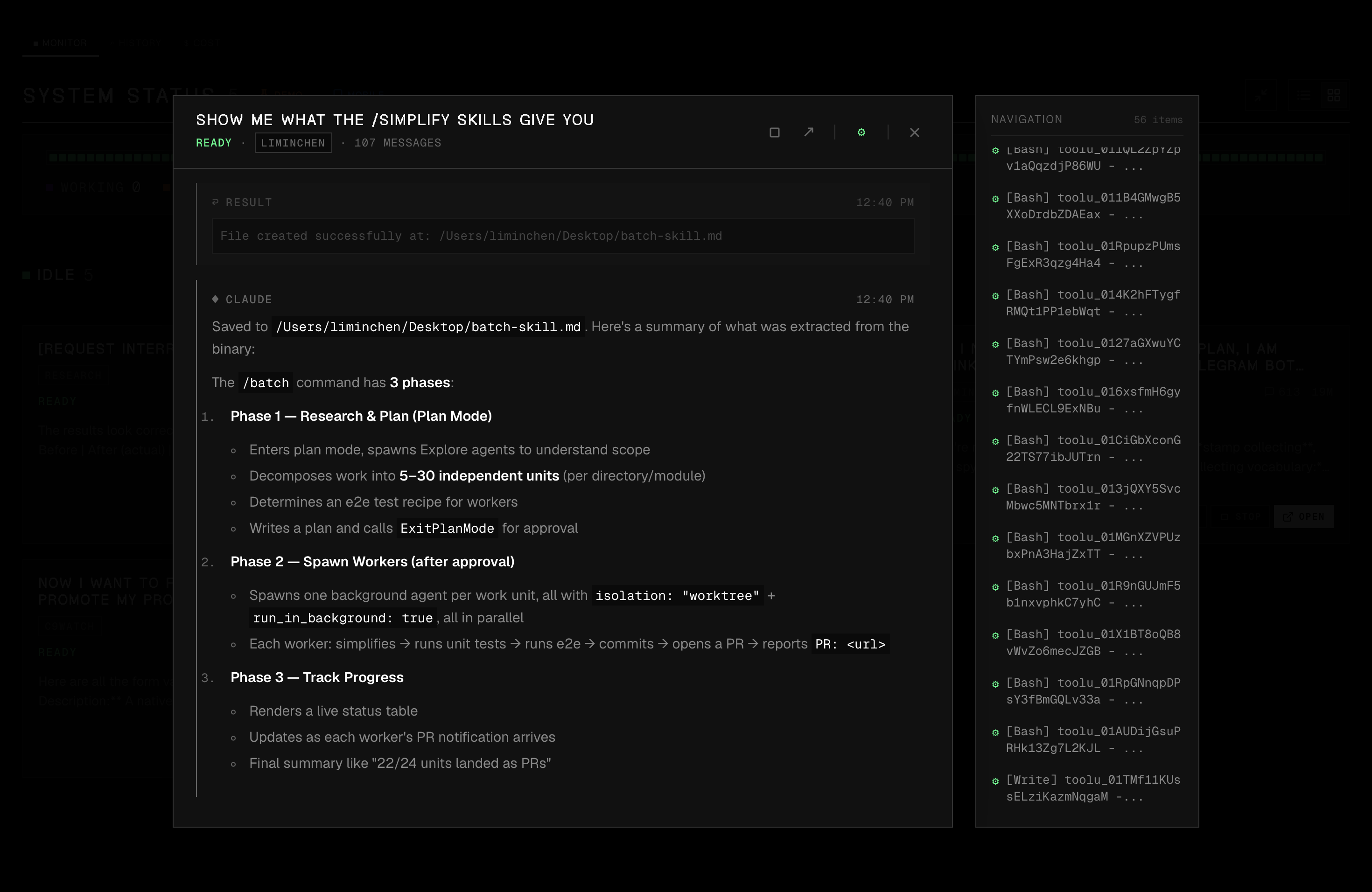
Section titled “Conversation viewer”Expand any session, live or from history, to see the full conversation. Messages are rendered with full markdown formatting, syntax-highlighted code blocks, inline images (for screenshots pasted in user messages), and tool call details.
A navigation sidebar on the right shows all messages for quick jumping. Tool call messages can be toggled on or off to focus on the conversation flow.
Session control
Section titled “Session control”From the dashboard, you can:
- Stop a running session
- Open the parent terminal or IDE where the session is running
- Rename sessions with custom titles for easier tracking
- Resume a past session — click the RESUME chip to copy the command
Multi-project view
Section titled “Multi-project view”Sessions are grouped by project directory, with git branch information shown for each group. When you’re running agents across multiple projects, this lets you see at a glance which project each session belongs to.
Tray popover
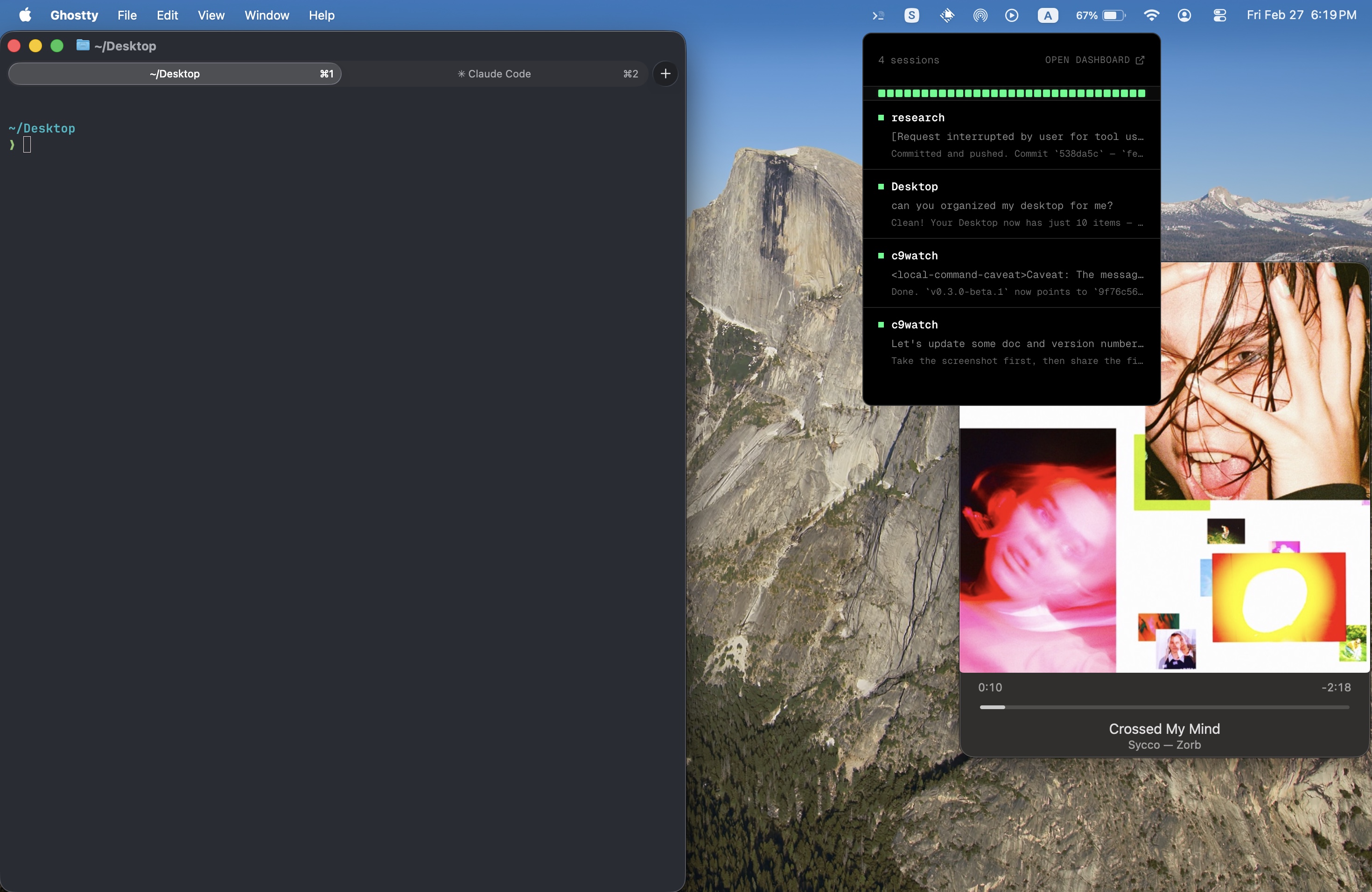
Section titled “Tray popover”Click the c9watch icon in the macOS menu bar to see a quick-glance overlay showing all active sessions, their status indicators, and latest messages. Monitor without opening the full dashboard.
The popover uses a native macOS NSPanel, so it appears above full-screen apps and behaves like a system-level overlay.
Status notifications
Section titled “Status notifications”Get a native macOS notification when a session changes status. It helps most when a session needs your approval. You won’t miss a waiting agent, even when you work in another app.
Mobile / Web client
Section titled “Mobile / Web client”c9watch includes a built-in WebSocket server that lets you connect from any browser or mobile device on the same network. Scan the QR code displayed in the app to open a real-time web dashboard on your phone. Useful for checking on sessions away from your desk.
Session history
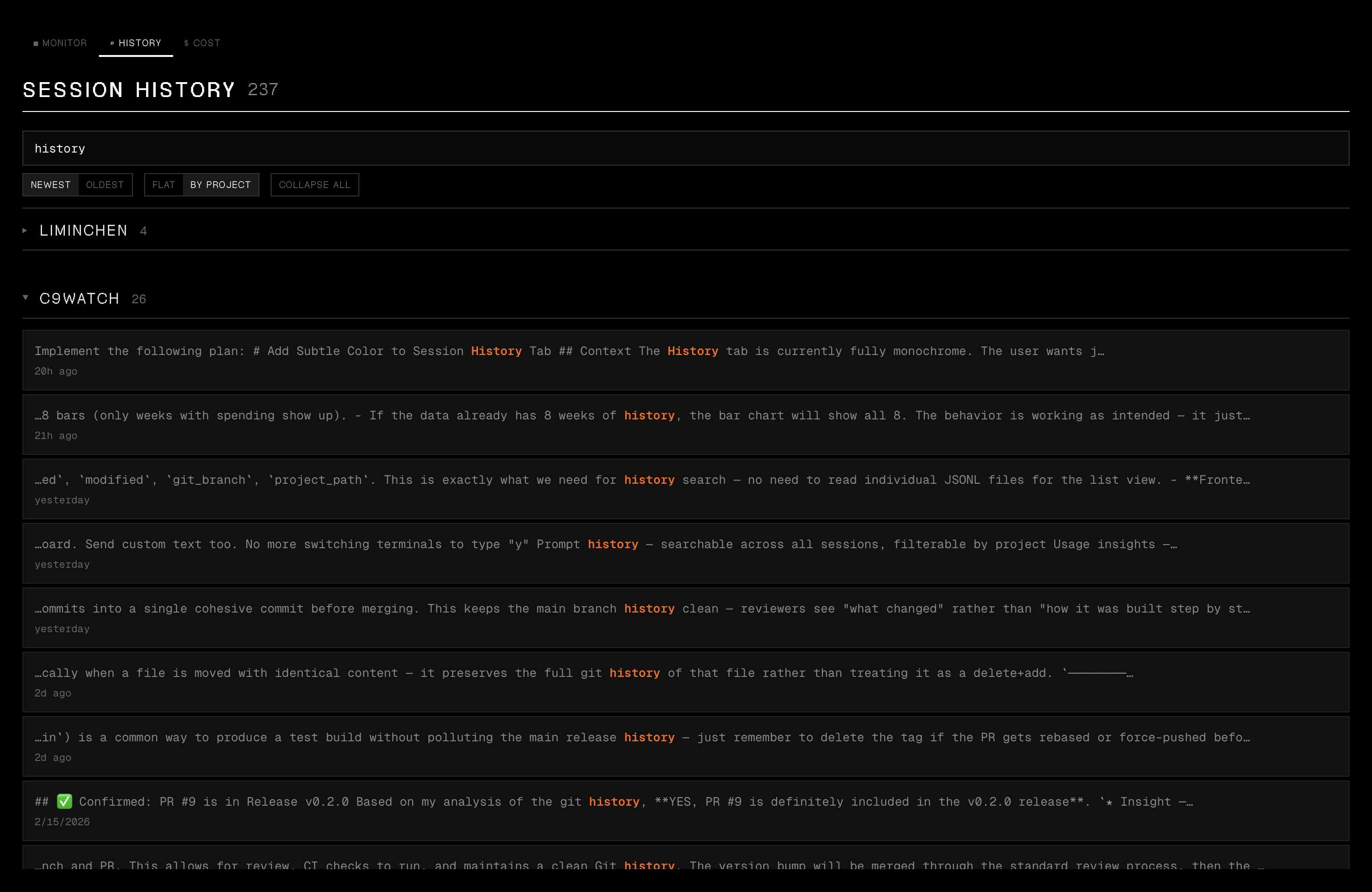
Section titled “Session history”Browse all past sessions with two search modes:
- Metadata filter: instant search by project name, session title, or date
- Deep content search: searches inside the actual conversation content across all session files
Click a deep search result to open the conversation viewer and automatically scroll to and highlight the matching message. Sessions can be viewed chronologically or grouped by project with collapsible groups.
Cost tracker
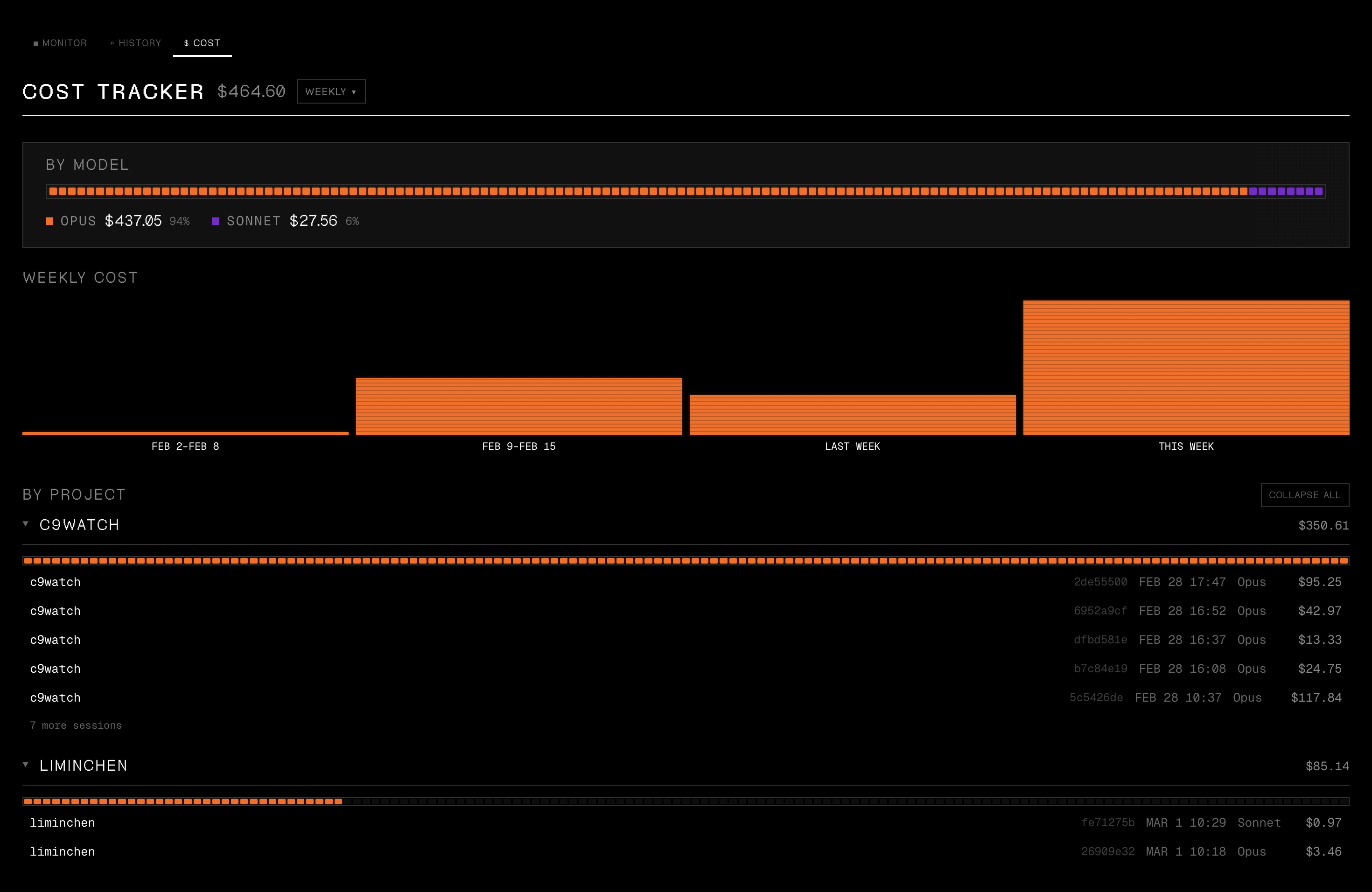
Section titled “Cost tracker”Track your spending across Claude Code, Codex and Pi sessions with three views:
- Daily: spending over time, bar chart with per-day breakdown. Sessions spanning midnight are split by date.
- By project: total cost per project directory with session count, expandable session list showing session names (custom title or first user message), and DATE/COST sort toggles
- By model: spending split by model (for example Sonnet, Opus, Haiku)
Click any session row to open a conversation preview overlay. It is the same viewer as the history tab.
Costs are computed from assistant message metadata in the session files, using per-model pricing tables. Pi reports its own cost data. Results are cached by file modification time so unchanged sessions aren’t re-scanned.
Token distance visualizer
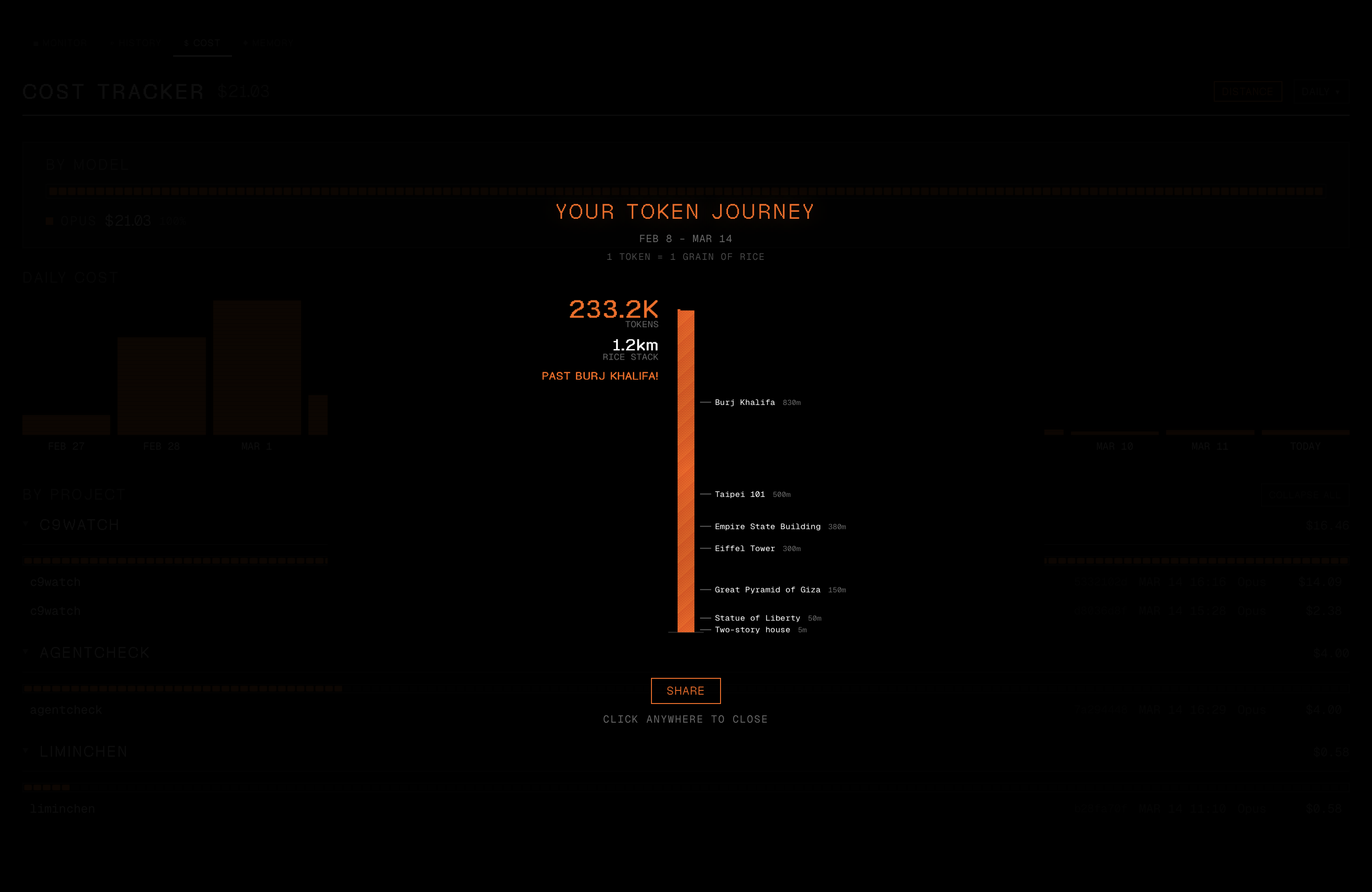
Section titled “Token distance visualizer”Ever wonder how much your token usage would look like in the physical world? The token distance visualizer converts your total tokens into a rice stack (one token equals one grain of rice, 5mm tall) and animates grains stacking up past 17 real-world landmarks.
Milestones range from a two-story house to the Moon, and include the Eiffel Tower, Taipei 101, and Mount Everest. The animation uses a 3-phase easing with continuous camera zoom-out as the stack grows.
Click SHARE to open the native macOS share sheet, or export an Instagram-ready PNG (1080×1350) with your stats and c9watch watermark.
Memory viewer
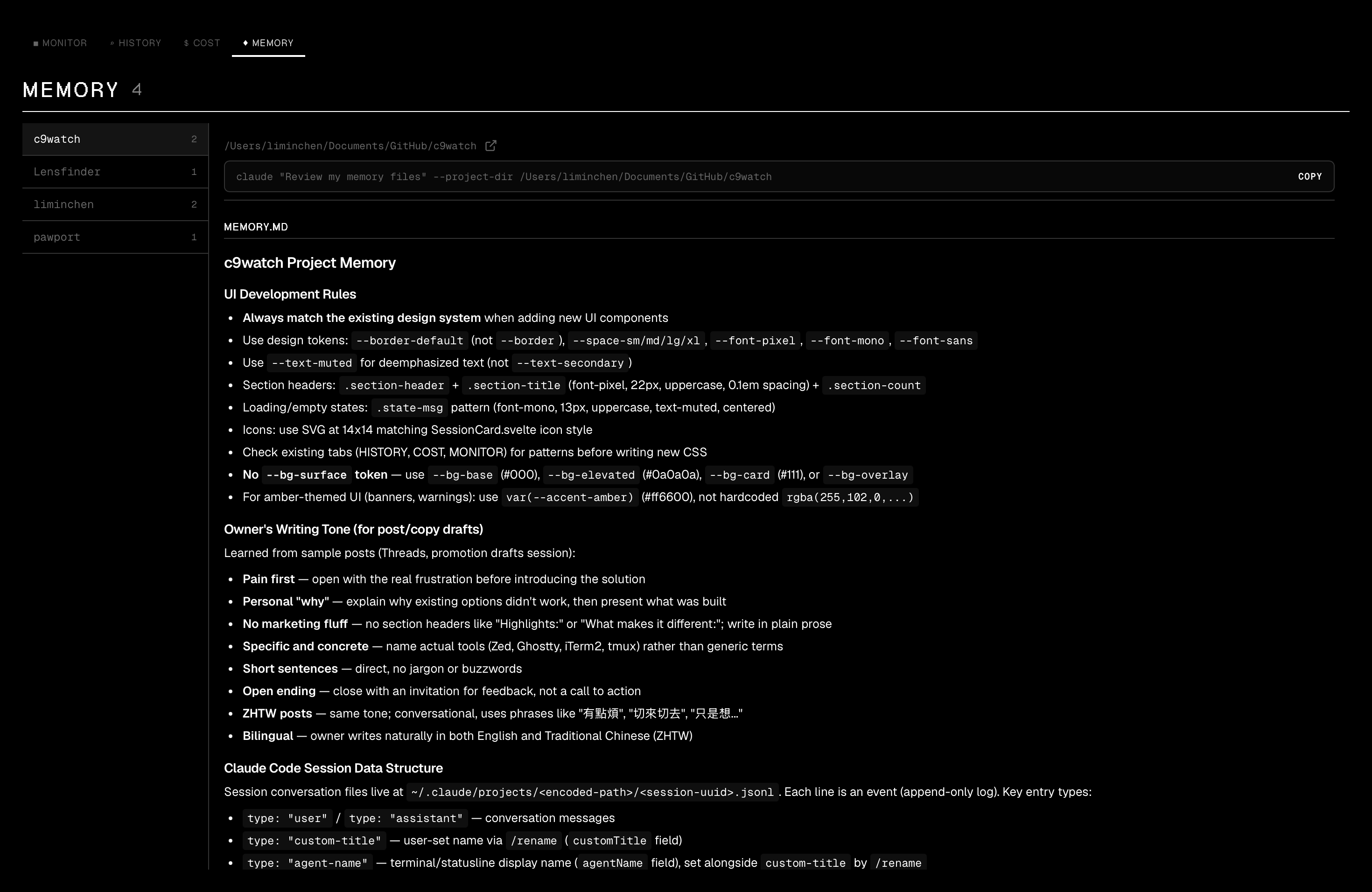
Section titled “Memory viewer”Browse all your memory files in a two-panel layout. The left panel lists all memory files organized by project, and the right panel shows the full content of the selected file.
Quick access to Claude commands lets you jump into sessions directly from the memory view.
CLI for agents
Section titled “CLI for agents”The same c9watch binary doubles as a command-line interface for scriptable session management. All output is JSON, designed for piping into jq or consumption by other coding agents.
c9watch list # List active sessionsc9watch list --status Working # Filter by statusc9watch status # Aggregate status summaryc9watch view <id> --last 5 --pretty # View conversationc9watch history -n 20 # Browse past sessionsc9watch search "fix the auth bug" # Deep searchc9watch self # Identify calling agent's own sessionc9watch stop <pid> # Stop a sessionc9watch watch --compact # Stream status changes (NDJSON)c9watch tasks <id> # View tasks/todosThe self command is designed for agent-to-agent workflows. A Claude Code session can identify itself by walking up the PID tree, then query its own status or tasks.
Install the CLI standalone (no GUI dependencies) on macOS or Linux:
curl -fsSL https://raw.githubusercontent.com/minchenlee/c9watch/main/install-cli.sh | bashc9watch also ships with a Claude Code skill. Install it to let Claude Code auto-discover and use the CLI:
ln -s /path/to/c9watch/skills/c9watch-cli ~/.claude/skills/c9watch-cliFDA permission banner
Section titled “FDA permission banner”On macOS, c9watch needs Full Disk Access to read the working directory of agent processes. If sessions are found but their paths can’t be read, a dismissible banner appears with a direct link to System Settings > Privacy > Full Disk Access.
Debug console
Section titled “Debug console”Press Cmd+Shift+D to open a hidden diagnostic panel that shows real-time detection logs: how many processes were found, which sessions matched, and which ones didn’t. Useful when sessions aren’t appearing in the dashboard.